Documentation

Cost Impact

Live cost estimates as you mark up PDFs and 3D issues. Calibrate scale, link IFC element types, map Revit categories, toggle imperial/metric, roll up per project.

Cost Impact

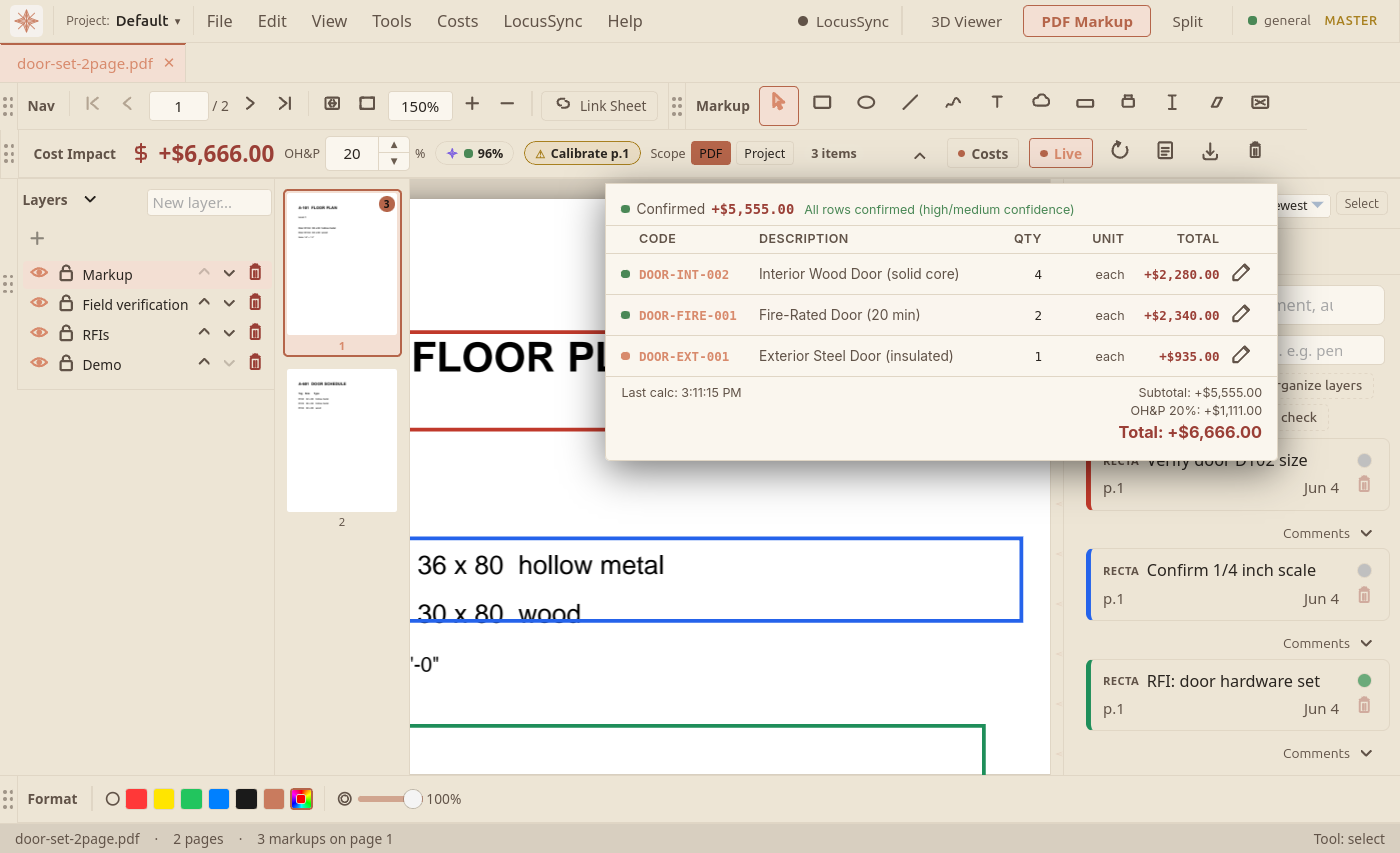
The Cost Impact toolbar provides live rough-order-of-magnitude cost estimates as you create markups on PDFs or issues in the 3D viewer. It is designed for early-stage budgeting and design-option comparison — not for final contract pricing.

How It Works

Every time you draw a markup or create an issue, LocusBIM automatically:

  1. Scans the issue or markup description for scope keywords (demo, replace, repair, install, paint)
  2. Matches the linked BIM element's IFC type or Revit category to the best cost code in the library
  3. Falls back to markup tool type when no element is linked
  4. Generates composite rows for multi-scope work (e.g., "replace drywall" → demo + install + paint)
  5. Multiplies quantity × unit cost × city region factor
Tip: For area and length markups, quantities are extracted from the PDF geometry using the PDF point standard (1 pt = 1/72 inch). Use Measure → Calibrate first for scaled drawings. When a markup is linked to a 3D element, IFC type gives the most accurate cost code.

Which Tools Trigger Cost Calculations

The cost engine only runs on tools that represent measurable physical work. Pure dimension annotations (calibration, single-segment linear measurements, radius/diameter/angle) do not trigger a calculation — they describe a length on paper but do not represent material to install or remove.

Key / ControlAction
Eligible (triggers calc)Rectangle, Polygon, Cloud, Polyline, Line, Freehand, Ellipse, Measure Area, Measure Polylength, Measure Count, Double Line
Not eligible (annotation only)Calibrate, Linear measurement, Radius, Diameter, Angle, Text/Typewriter, Stamp, Signature, Highlight, Cutout/Redact
Tip: If you want a cost estimate for a region you've drawn with the Linear measurement tool, re-draw it with Measure Area or Polylength — the cost engine needs an area or perimeter quantity to multiply by a unit cost.

When Calculations Look Wrong or Missing

The cost engine is best-effort: it derives quantities from your geometry and matches them to the closest item in the library. The most common reasons a calculation looks wrong or doesn't appear:

Key / ControlAction
No calibration setArea/length tools produce a 0 quantity until you set a known length via Measure → Calibrate on the page
Generic PDF, no element typeOn non-BIM PDFs the engine has no IFC type to match against — right-click the markup → Set Element Type to assign one (promotes to High confidence)
Confidence shown as "Very Low" (grey dot)Engine fell back to MISC-001 because no element/keyword/tool match was found — click the pencil (✎) on the row to manually pick the correct cost code
Quantity looks off by a factor of 10/100/1000Calibration was set with the wrong known length or unit — re-calibrate the page; existing markup quantities will refresh on the next interaction
Scope keyword not picked upAdd the action verb (demo / replace / repair / install / paint) to the markup subject or description so the engine knows whether to generate demo + install rows or just one
Cost is $0 for a known-good markupThe matched cost-library item may be missing material/labour data — open Costs → Cost Library and edit the row, or pick a different code via the pencil icon
Tip: Cost calculations and summary refreshes run silently in the background — they never raise a toast on failure. If a markup didn't get costed, check the row's confidence dot in the breakdown panel: grey/amber means the engine wasn't sure, and you can override the code with the pencil icon. If a calc is genuinely failing for diagnostic purposes, open DevTools to see the [CostEngine] console log.

Best-Practice Workflow for Accurate Costs

  1. Calibrate the page first — Measure → Calibrate, then click two points with a known real-world distance. Required for any area/length-based cost calculation.
  2. Pick the right tool for the quantity you want — Measure Area for square metres (drywall, flooring), Measure Polylength for linear metres (baseboard, duct runs), Measure Count for unit quantities (light fixtures, outlets).
  3. Right-click → Set Element Type on generic PDFs so the engine doesn't have to guess. This single step promotes the calc to High confidence.
  4. Add a scope keyword to the markup subject (demo, replace, repair, install, paint) so the engine knows the work type.
  5. Review the breakdown panel — green/blue dots are trustworthy; amber and grey dots want a manual code via the pencil (✎) icon.
  6. Pick your city's region factor in Costs → Cost Library so the unit costs reflect local labour/material indices.

Smart Scope Detection

The engine reads the issue title or markup description for action keywords and generates the appropriate rows automatically:

Key / ControlAction
demo / remove / tear outDemolition row only (savings sign)
replace / swapDemo row + install row + optional paint finish for wall-family items
repair / patch / fixSingle row at 40% of install cost
paint / finish / coatFinish coat row (PAINT-001)
new / install / addInstall row only (default when no keyword found)

IFC Type Mapping

When a markup or issue is linked to a 3D element, the IFC class drives cost code selection. Examples:

Key / ControlAction
IfcWall / IfcWallStandardCaseWALL-INT-001 — Interior metal stud wall framing
IfcSlabCONC-SLAB-001 — Concrete slab on grade
IfcBeam / IfcMemberSTRUCT-BEAM-001 — Structural steel W-section beam
IfcColumnSTRUCT-COL-001 — Structural steel HSS column
IfcDoorDOOR-INT-001 — Interior hollow metal door + frame
IfcWindowWINDOW-001 — Standard aluminum window
IfcRoofROOF-MEMBRANE-001 — EPDM flat roof membrane
IfcCurtainWallCURTAIN-WALL-001 — Aluminum curtain wall system
IfcStairSTAIR-001 — Steel pan stair assembly
IfcFlowSegment (duct)HVAC-DUCT-001 — Ductwork supply per lm
IfcSanitaryTerminalPLUMB-SINK-001 — Lavatory sink complete

Revit categories (Walls, Structural Framing, Roofs, Doors, Windows, Ducts, etc.) are used as a fallback when no IFC sidecar is linked. Markup tool type is the final fallback.

Mapping Your Own Categories

When a Revit model uses a custom category — or any category whose name LocusBIM doesn't recognise out of the box — those elements fall through to the generic MISC-001 fallback at "very-low" confidence. You can teach the engine to recognise them once and have every future markup priced correctly.

  1. Open Cost Impact → ⋯ (overflow menu) → Category Mappings.
  2. The dialog shows two lists: Unmapped categories the engine has seen across your active project (clickable chips that pre-fill the form) and Existing mappings you've already created.
  3. Pick a CSI code from the library (the picker validates against the library so typos can't slip through), an optional demo code for the "remove" half of replace-scopes, and an optional unit override (for example, force lf instead of the library default sqm).
  4. Save — every future markup with that category re-prices to the new code.
Tip: User mappings beat IFC, Revit, and tool-type fallback. They are scoped per-machine, not per-project, so a mapping you set once applies everywhere. Edit or delete from the same dialog — deletion reverts affected rows back to MISC-001 at "very-low" confidence so the change is visible in the cost log.

Setting Element Type on Generic PDFs

When working with generic (non-BIM) PDFs — architectural drawings, site plans, or any PDF not generated from a linked 3D model — markups have no element context for the cost engine. You can manually assign one via right-click.

  1. Right-click any markup on the canvas
  2. Click Set Element Type
  3. Search or browse the grouped picker (Structural / Architectural / MEP / Site & Civil / General)
  4. Select the element type that best matches what the markup covers, then click Apply

The selected type is stored on the markup and used as a tier-1 cost code lookup — the same priority as a linked 3D BIM element, and promoted to High confidence. Use Clear Override to remove it and let the engine fall back to keyword or tool-type matching.

Key / ControlAction
Structural groupWall, Slab/Floor, Column, Beam/Framing, Foundation, Roof, Railing, Stair, Exterior Deck
Architectural groupInterior Wall, Partition, Door, Window, Curtain Wall, Ceiling, Floor Covering, Casework
MEP groupDuct/Pipe, VAV, Mechanical Unit, Plumbing Fixture, Electrical Panel, Light Fixture, Outlet, Conduit
Site & Civil groupExterior Paving, Parking Structure, Retaining Wall, Landscaping/Site Work
General groupFurniture/Equipment, Specialty/Misc, General Construction
Tip: For decks, gazebos, and other exterior structures not in a BIM file: right-click the markup, set element type to Exterior Deck / Patio or the closest match, then add a scope keyword like "replace deck" to the markup subject. The engine will generate a demolition + install composite at high confidence.

Confidence Indicator

Each row in the breakdown panel shows a coloured dot indicating how certain the engine is:

Key / ControlAction
Green dot — HighUser-assigned element type (Set Element Type), or IFC type with BIM dimensions
Blue dot — MediumIFC type or Revit category matched from linked 3D element; 2D quantity used
Amber dot — LowMarkup tool type fallback (no element linked or assigned)
Grey dot — Very LowGeneric fallback to MISC-001 — review manually

Manual Override

Click the pencil icon (✎) on any row in the breakdown panel to override the auto-assigned cost code with one of your own choosing. A searchable picker lists all items in the cost library. Once overridden, the row is locked (shown with a purple ✎ badge) and will not be replaced by subsequent recalculations. Use Clear override in the picker to restore automatic assignment.

Per-Element Cost in 3D View

When you select an element in the 3D viewer, the selection overlay (bottom-left HUD) shows the estimated total cost impact for that element alongside its name and category.

Toolbar Controls

Key / ControlAction
▼ ExpandShow/hide the breakdown panel with line items, confidence dots, and scope chips
Live ON/OFFToggle automatic recalculation when markups change
↻ RecalculateManually refresh the cost summary from the database
Export PDFFormatted PDF report with header, summary box, itemised table, and disclaimer
Export CSVSpreadsheet with all columns including confidence, scope_type, manual_override
ClearDelete impacts; prompts whether to keep manually-overridden rows

Region Factor (City Multipliers)

The region factor is a blended multiplier covering material, labour, and equipment cost indices for your location. Labour costs vary significantly by province and city — the composite factor accounts for this. Select your city from Costs → Cost Library.

Key / ControlAction
National Average1.00×
Toronto, ON1.18×
Vancouver, BC1.24×
Calgary, AB1.10×
Edmonton, AB1.04×
Montreal, QC1.06×
Ottawa, ON1.05×
Halifax, NS0.93×
New York, NY1.35×
San Francisco, CA1.42×
Tip: Region factors are composite indices derived from RSMeans, Statistics Canada, and the U.S. Bureau of Labour Statistics. They are a blended multiplier — material and labour costs are not split separately. For projects where labour is the dominant cost (MEP, structural), consider applying a manual adjustment via a custom library item.

Imperial vs Metric Units (Per-Project)

Each project has a unit system: Metric (m, sqm) or Imperial (ft, sqft). The toggle is in Projects → Project Settings → Unit System — and there's a quick segmented switch on the Cost Impact toolbar so you can flip the display while reviewing.

Tip: Switching unit systems only changes how numbers are displayed — your quantities aren't rewritten. That means you can flip back and forth freely with no rounding drift, and teammates who prefer different units can collaborate on the same project — each sees their own.

Unit costs convert the same way: a library item priced at $65/sqm displays as $6.04/sqft in imperial mode. Cost reports and CSV exports use whichever unit system was active when they were generated — the file's header notes which one.

Custom Cost Items

Open Costs → Cost Library, click + Custom Item, and enter the item code, description, unit, and material/labour/equipment costs. Custom items are saved to the local SQLite database and persist across sessions.

Import / Export

The library can be exported to RSMeans-style CSV for editing in Excel, then re-imported. Cost reports export as CSV or PDF from the toolbar or the Costs menu.

Legal Disclaimer

Important Notice:
All cost figures generated by LocusBIM are rough-order-of-magnitude estimates intended solely for early-stage planning, design comparison, and budgetary reference. They are not quotations, bids, or contractually binding prices.

LocusBIM does not guarantee the accuracy, completeness, or timeliness of any cost data. Actual construction costs depend on market conditions, supplier pricing, labour agreements, site conditions, code requirements, and numerous other variables beyond the scope of this software.

Always engage a licensed quantity surveyor, professional estimator, or qualified contractor to obtain formal pricing for budgeting, tendering, or contractual purposes. LocusBIM Technologies Inc. assumes no liability for any loss, damage, or dispute arising from reliance on these estimates.
Related topics
  • Measurement & CalibrationCalibrate drawing scale and run linear, area, radius, diameter, angle, polylength, and count measurements on PDFs.
  • ProjectsOrganise PDFs, issues, and cost rollups per project so you only see the engagement you're working on — no mixing across clients.
  • IFC Element MatchingMatch Revit and IFC element identifiers across model versions so issues and markups stay linked when the model is rebuilt.
  • ExportingSave marked-up PDFs, flatten annotations, export BCF for issue exchange, and print clean drawing sets.