Markup Toolbar
Rectangle, ellipse, cloud, text, freehand, highlight, and cutout tools for marking up PDF construction drawings.
Markup Toolbar
All core PDF annotation tools. Press the keyboard shortcut or click the icon to activate a tool.
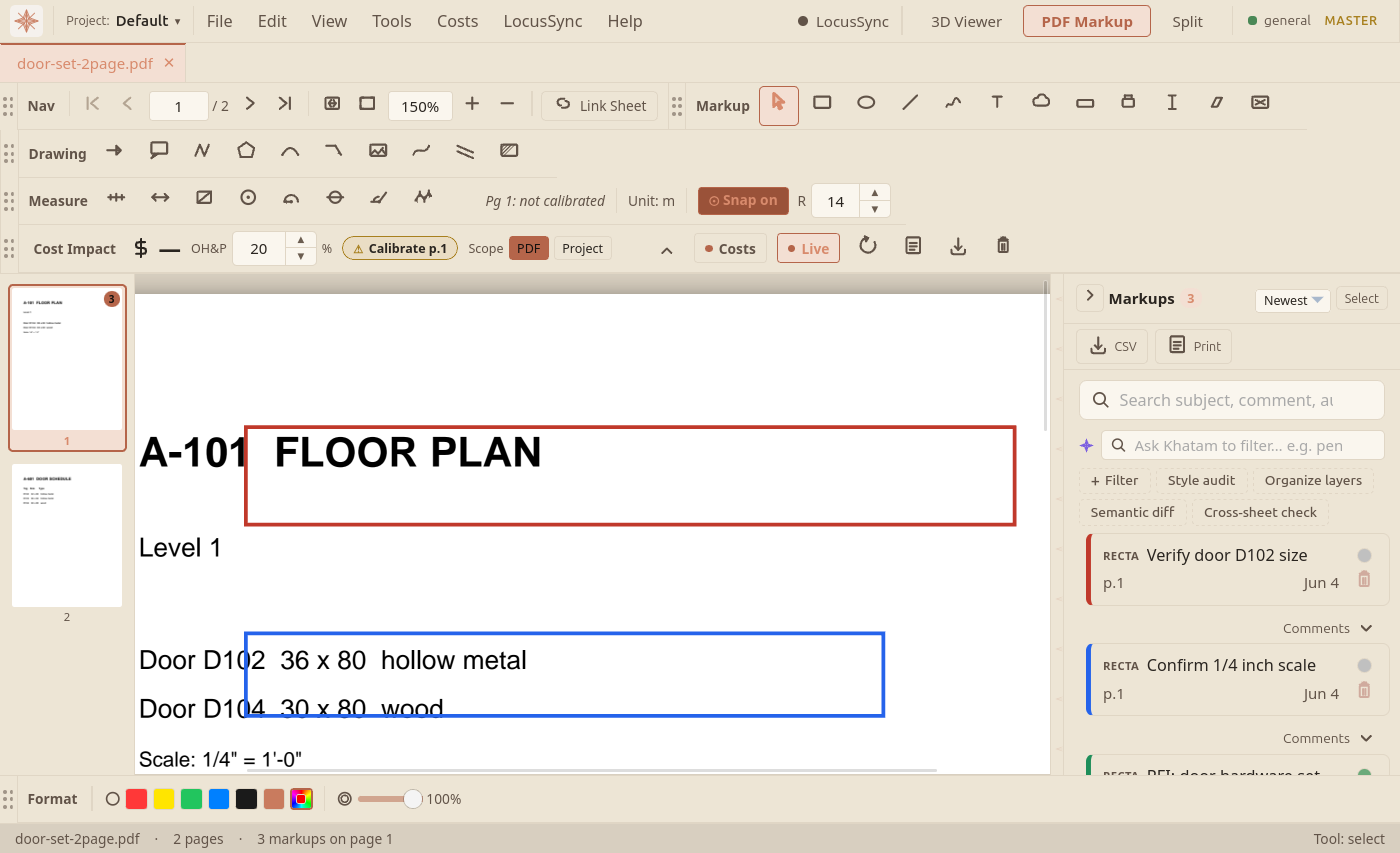
Figure 1 shows a drawing with a few markups in place: each markup you draw appears on the sheet and as a row in the markup sidebar on the right, carrying its subject, status, and page. From the sidebar you can search, filter, and export markups, or hand them to the Khatam actions (Style audit, Organize layers, and more).
Select [S]
Click a markup to select it. Drag to move. Use handles to resize. Delete or Backspace removes selected markups. Double-click a text markup to re-enter edit mode.
Rectangle [R]
Drag to draw a rectangle. Holds its stroke and fill colours from the Format toolbar.
Ellipse [E]
Drag to draw an ellipse. The bounding box is dragged, not the radii directly.
Line [L]
Drag from start point to end point. Useful for marking dimensions or leaders.
Freehand [F]
Hold the mouse button and draw freely. Release to complete the path. Freehand drawings are stored as vector paths and can be moved, resized, or deleted as a single object. Best used for sketch annotations, circling items, or handwritten notes.
Text [T]
Click to place a text box. Typing begins immediately. Click elsewhere to finish. Double-click to re-edit. Font size is controlled in the Format toolbar.
Cloud [C]
Drag to draw a revision cloud annotation. The cloud boundary is defined by the drag rectangle. Arcs bulge outward from each edge.
Highlight [H]
Drag to draw a translucent highlight rectangle at 40% opacity. Useful for calling attention to sections of the drawing. Fill colour set in Format toolbar.
Stamp [P]
Click the stamp button to open the stamp picker. Select a built-in stamp (APPROVED, REJECTED, REVIEWED, etc.) or choose from your custom stamps. Then click on the PDF to place the stamp. Stamps appear as bordered text boxes that can be moved and resized.
Typewriter [Y]
Click anywhere to place text without a bounding box. The text flows freely and can be moved as a single object. Useful for quick annotations.
Eraser [X]
Click or drag over existing markups to erase them. The eraser has a 10 px radius, any object within this distance will be removed. Works on all markup types including freehand paths, rectangles, text, and stamps. Supports undo (Ctrl+Z).
Cutout [K]
Drag to create a white rectangle that visually covers underlying PDF content. Unlike other markups that draw on top, cutouts appear as white holes in the document. Useful for tidying a drawing or hiding a section for presentation.
- Drawing ToolsArrow, callout, polyline, polygon, arc, image, spline, and leader tools for detailed PDF markup.
- FormatStroke colour, fill, line style, opacity, line width, and font controls applied to selected markups.
- LayersOrganise markups into named layers. Hide, lock, or reassign markups per discipline or markup pass.
- Markup CommentsAdd threaded comments and discussion replies to any markup on a PDF drawing, saved locally and shared via LocusSync.