Getting Started
Open your first PDF, find the toolbars, and learn how the LocusBIM workspace fits together for PDF markup and 3D coordination.
Getting Started
LocusBIM's PDF Markup engine lets you annotate construction and engineering drawings directly within the app, without leaving your BIM workflow.
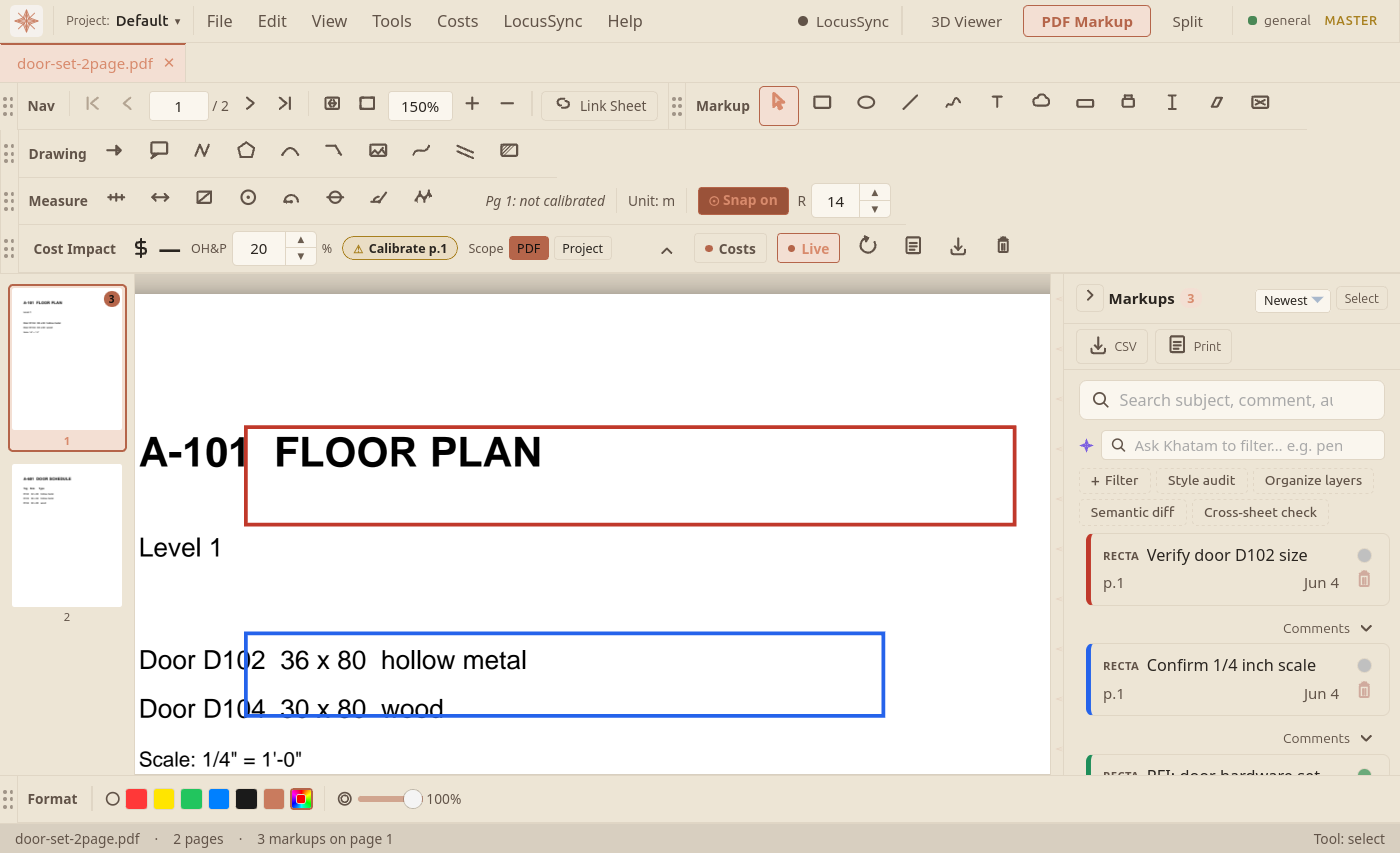
Figure 1 shows the workspace with a drawing open. The top bar carries the menus and the 3D Viewer / PDF Markup / Split tabs; below it sit the toolbars (page navigation and zoom, the markup tools, and the Cost Impact row); the page thumbnails run down the left, the drawing fills the center, and the markup sidebar (search, filters, and the Khatam actions) is docked on the right.
Opening a PDF
Use File → Open PDF… (Ctrl+Shift+O) or click the Open PDF button in the toolbar. A native file picker opens; select any PDF file. The document renders at fit-width zoom automatically.
All toolbar buttons use a unified 20×20 SVG icon system with 1.5 px stroke weight. Hover over any icon to see a scale-up micro-animation and a tooltip with the tool name and keyboard shortcut.
Navigating Pages
Use the Navigation toolbar: click ◄ ► to move between pages, type a page number directly, or use the Fit Width / Fit Page buttons to adjust zoom.
Switching Between 3D and PDF
Click 3D Viewer or PDF Markup in the top tab bar to switch between views. Click Split to show both side by side with a draggable divider, useful when cross-referencing a floor plan against the 3D model. See the Workspace Layout section for details.
- NavigationPage navigation, zoom, fit-to-width, and scroll controls for working with multi-sheet PDF drawing sets in LocusBIM.
- Workspace LayoutSplit view, side-by-side panels, and drag-to-resize dividers for working in PDF and 3D viewer at the same time.
- Keyboard ShortcutsComplete keyboard reference for LocusBIM: markup tools, navigation, undo/redo, and the Ctrl+F find bar.